

Identify where the issue occurs
Support on CoconutJL.com starts with the affected location: this website, an external destination or an installed application from another provider. Different parties hold different records. A website display issue should not require you to disclose a password or verification code.
For a page or browser problem
Record the full page address, device, browser and approximate time. Check whether another page on the same website opens. If possible, retry in an updated browser after saving any work. Explain what you expected to see and the exact message that appeared.
- Identify the affected address and device.
- Write down the visible error.
- Check whether the issue affects one page or several.
- Share a screenshot only after removing private information.
For account or transaction records
Use the verified support channel within the service holding the account. Give the relevant reference and a concise description. Do not post credentials, identity documents or payment information in a public social conversation. This website cannot inspect or change another provider’s records.
For connection and mobile questions
CoconutJL.com distinguishes ordinary browser troubleshooting from third-party VPN information. VPN instructions appear only when a provider source and complete device steps have been checked. A network tool does not change service eligibility, region rules or account permissions.
iOS setup
Step 1
Open the App Store.
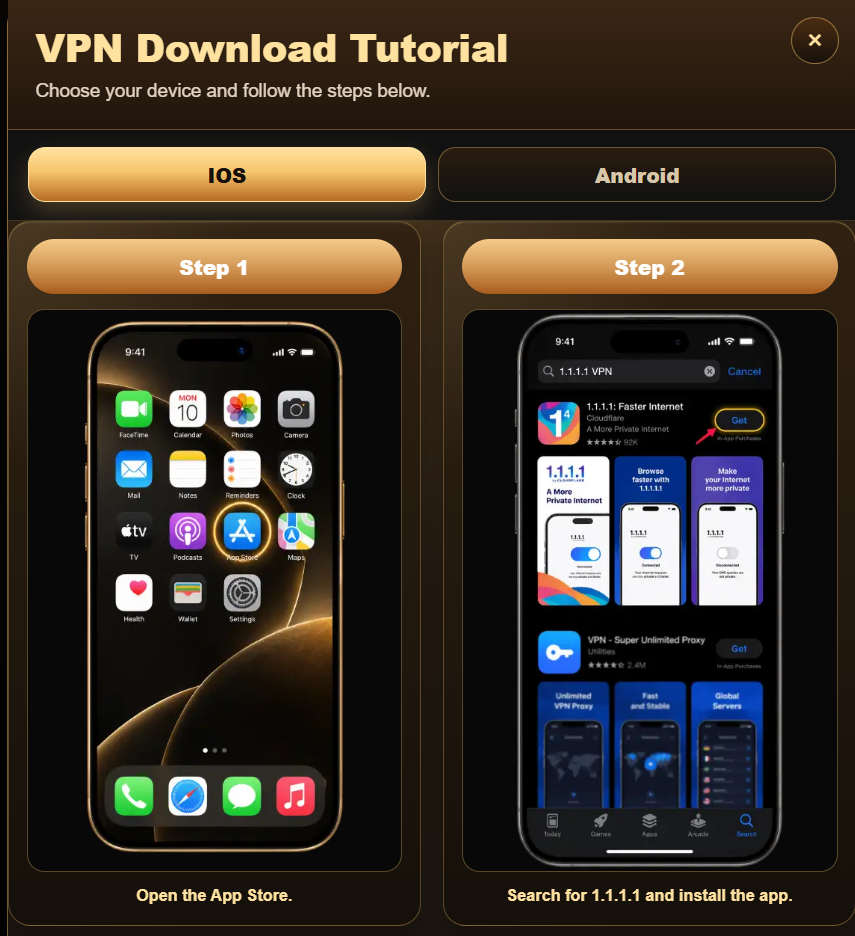
Step 2
Find 1.1.1.1: Faster Internet by Cloudflare and install it.
Step 3
Open the app, follow setup and approve the VPN profile when your device asks.
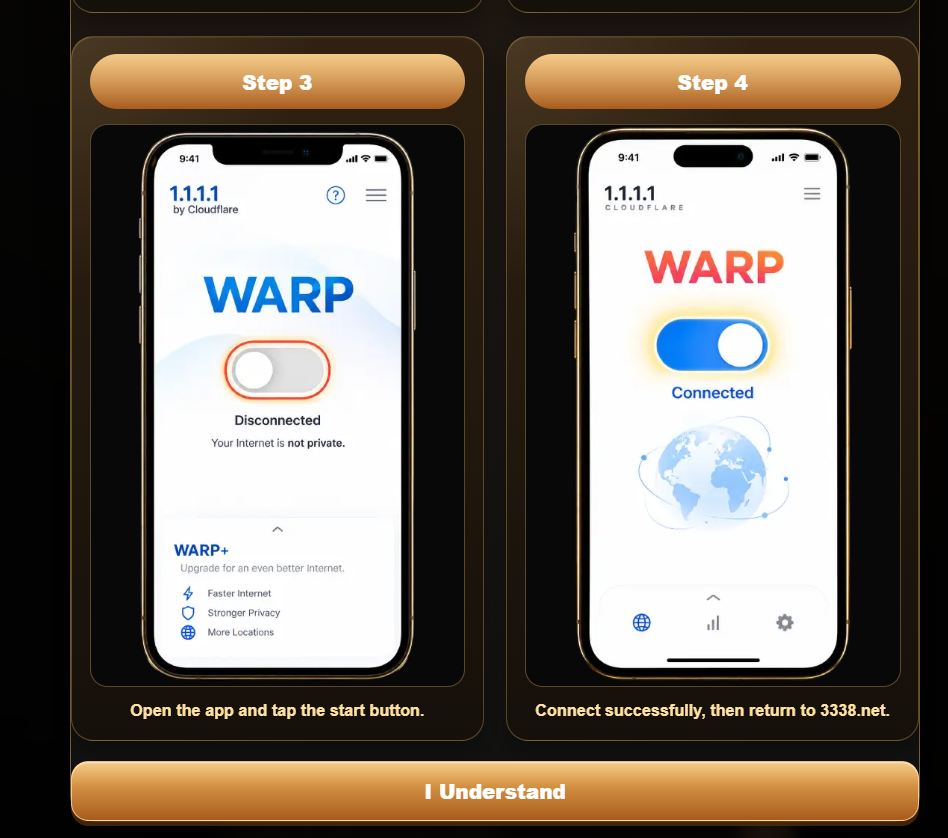
Step 4
Turn on WARP. Once the app reports a connection, return to the website.
Android setup
Step 1
Open Google Play.
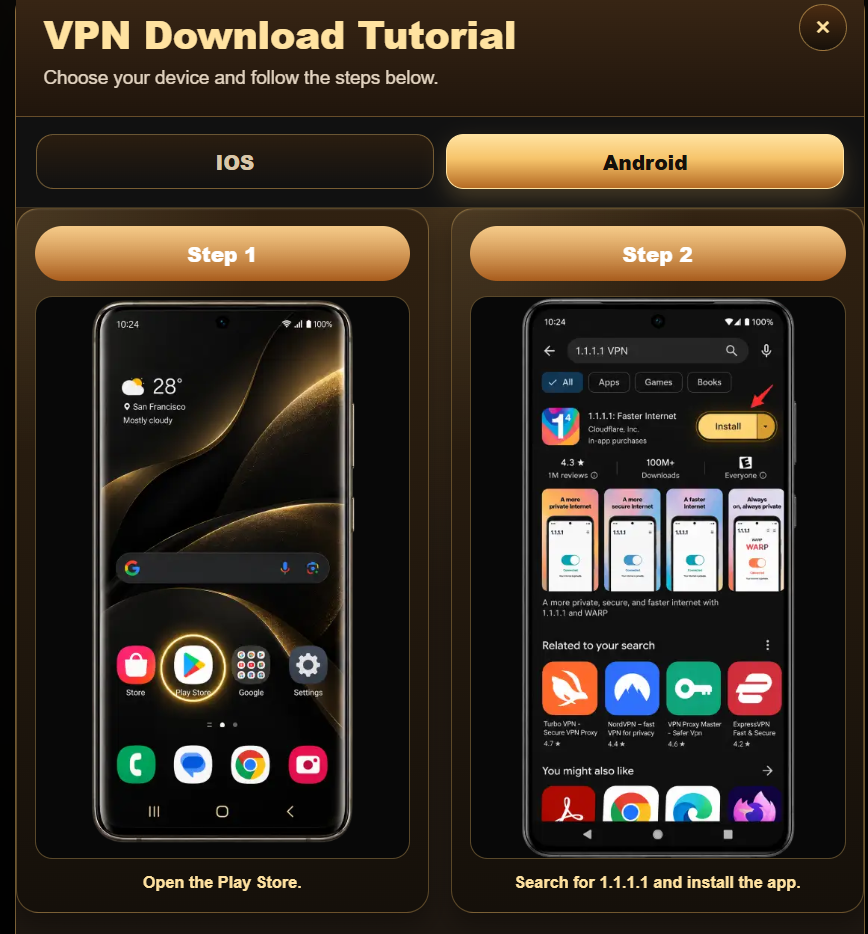
Step 2
Find 1.1.1.1: Faster Internet by Cloudflare and install it.
Step 3
Open the app, follow setup and approve the VPN profile when your device asks.
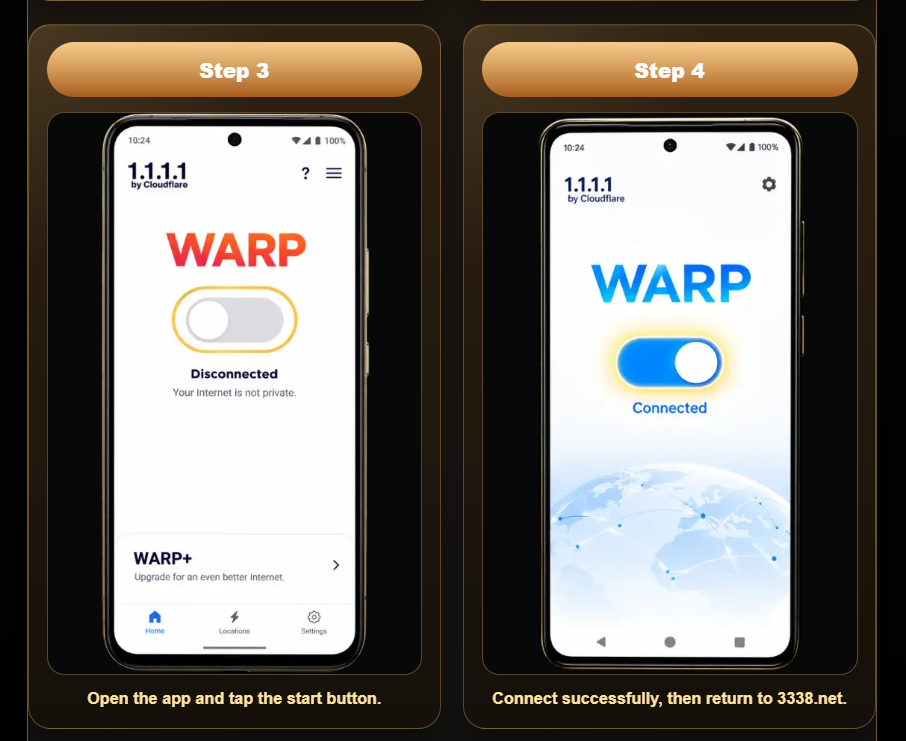
Step 4
Turn on WARP. Once the app reports a connection, return to the website.